Printing Part labels can be useful for records, identification, tracking, and issuing parts. This article describes how to Print Part Labels.
Note: For label recommendations and printing please see SOMAX Labels
Printing Part Labels Single or Multiple
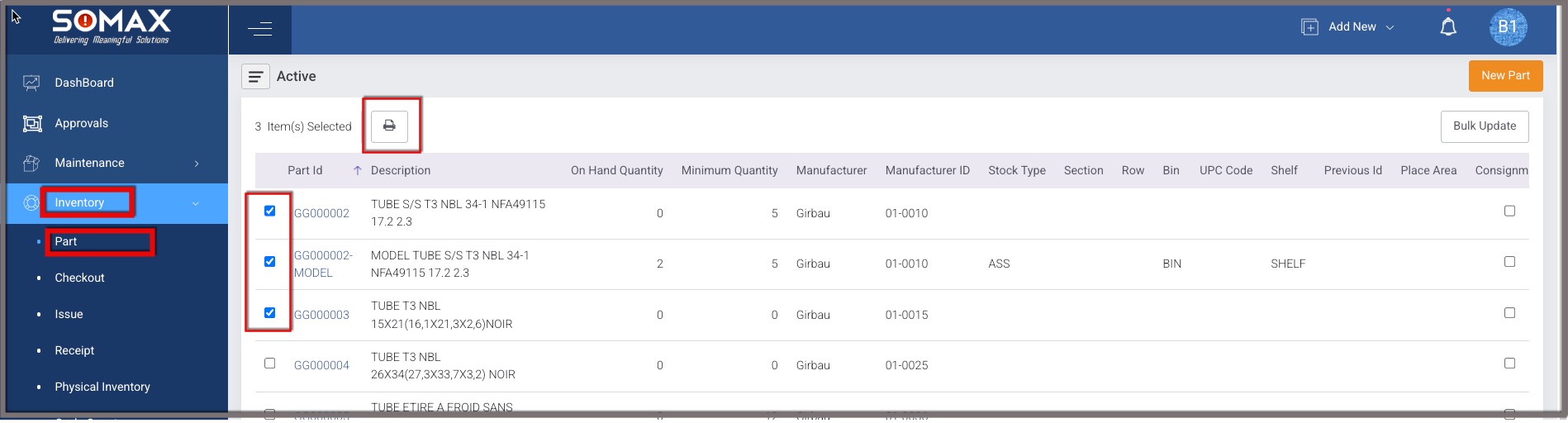
- From the left sidebar, select Inventory and then Part.
- Click the checkbox in the leftmost column of each part you would like to print a label for. If you cannot find your part, check your settings and filters.
- Select the printer icon at the top left.
- Choose if you would like a small or large qr code.
- Select Print.
- This should open a new window. Select the printer icon once again at the top right and print as normal.
Printing Part Labels Single
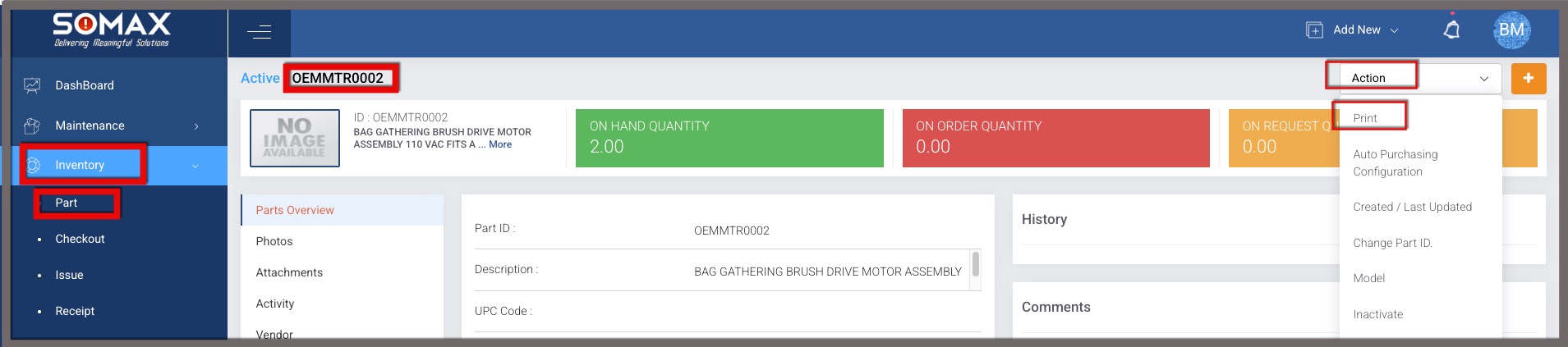
- From the left sidebar, select Inventory and then Part.
- Select the Part that you want to print the label for and open the Part Detail page
- Select the Action Menu in the Top Right
- Select Print
- Choose if you would like a small or large qr code.
- Select Print.
Was this article helpful?
That’s Great!
Thank you for your feedback
Sorry! We couldn't be helpful
Thank you for your feedback
Feedback sent
We appreciate your effort and will try to fix the article